
Your past conversations are a goldmine: they contain the way you welcome guests, the door codes, the check-in rules, the answers you have already written a hundred times. Alberga imports that history and analyzes it into the AI Memory — a per-listing rulebook your assistants read before every answer, so they reply the way you would, from day one. Everything in it is laid out for you to review, correct and extend under Tasks → AI Memory.
Airbnb chats arrive on their own
There is nothing to do for Airbnb: when you connect it (see the channels tutorial), the message history of your bookings is imported together with the reservations. Every conversation appears in Chats → Conversations, attached to its booking and listing.
Import your WhatsApp chats
- 1Open Channels → Whatsapp and switch to the Import Chats tab. A QR code appears.
- 2On your phone, open WhatsApp → Settings → Linked Devices → Link a Device, and scan the QR code. (No camera at hand? Use Link with phone number instead to get a pairing code.)
- 3Wait while your chats load — a counter shows the progress.
- 4Tick the conversations you want to bring in, and pick the listing they belong to.
- 5Confirm the import. The selected chats appear in Chats → Conversations under that listing, ready to be analyzed.
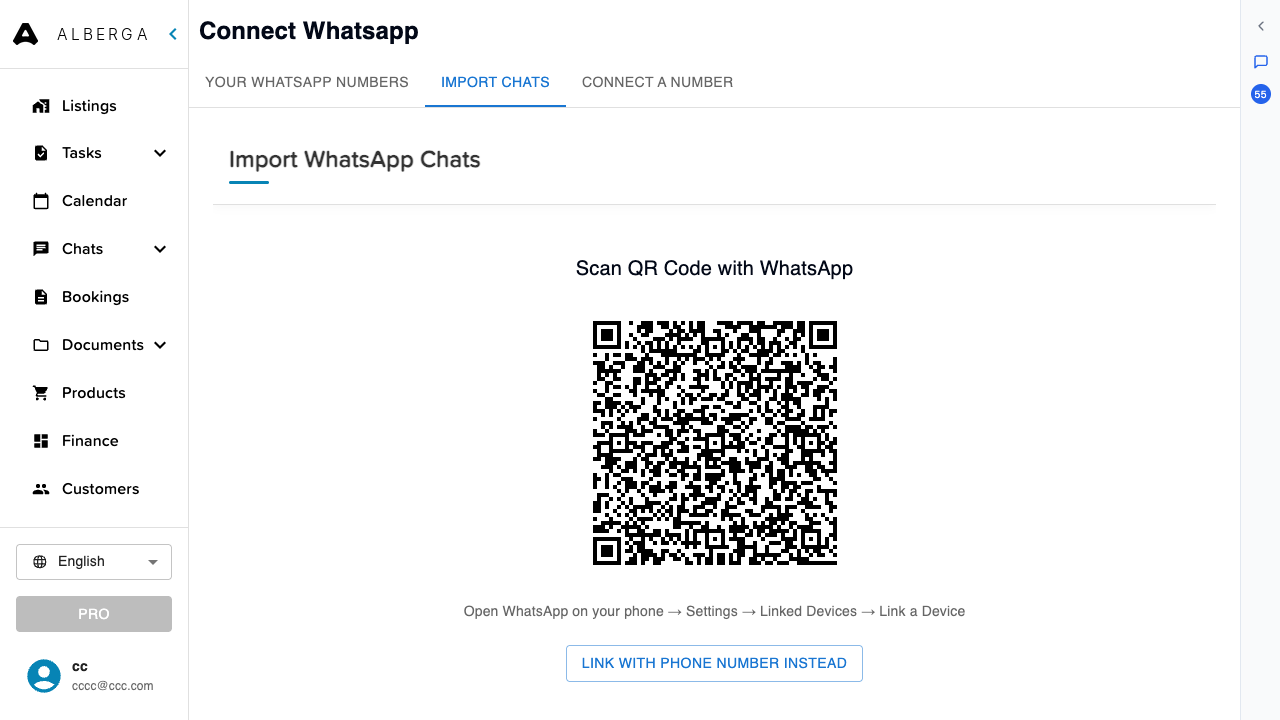
Good to know: Linking works exactly like WhatsApp Web and is read-only for the import: nothing is sent from your account, and you can disconnect at any time.
Run the first analysis
- 1Open Tasks → AI Memory in the left sidebar.
- 2Pick the listing at the top left and start the analysis (Analyze the first time, Retrain to rebuild it from scratch later).
- 3It reads the listing’s conversations and takes a few minutes. When it finishes, the listing shows a Ready badge and the Memory appears below.
Good to know: After the first run you never need to click again: every night Alberga re-reads each listing’s new conversations and updates its Memory — adding what it learned, and asking you before changing anything you already have (see “Approve what the AI learns” below).
Find your way around
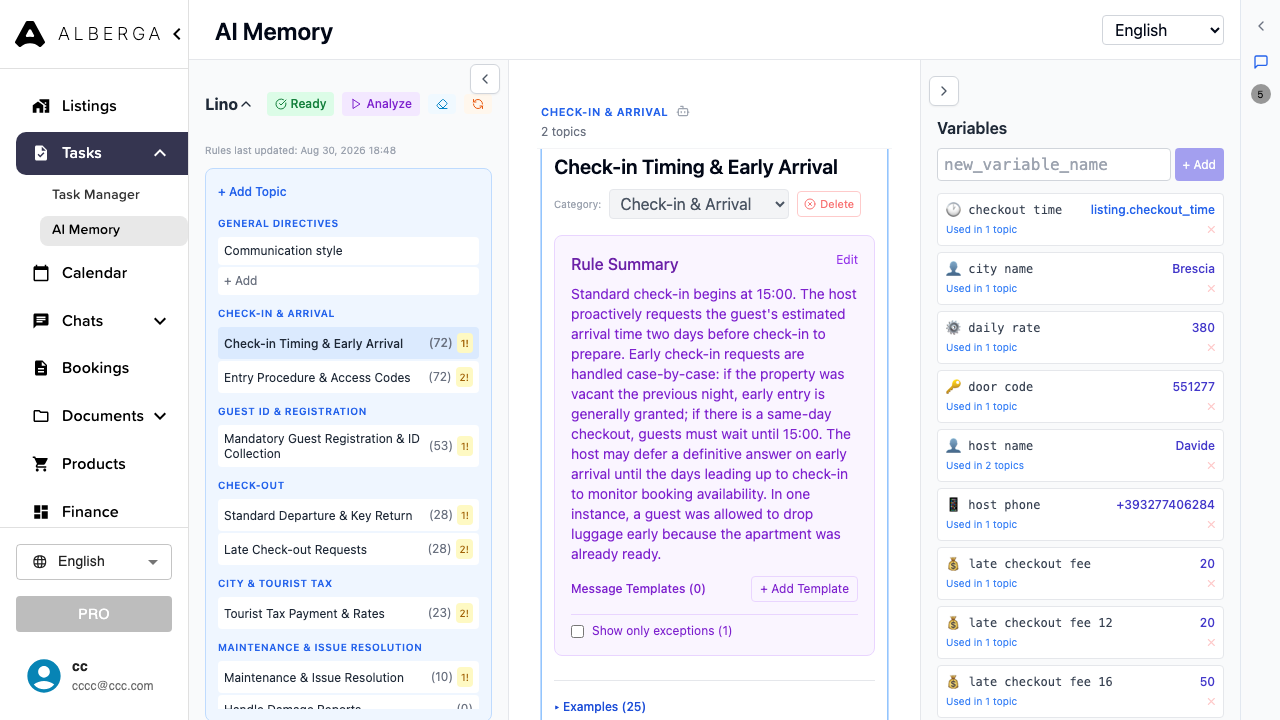
The page has three panels, left to right, plus a few cards worth knowing:
- Topics — everything learned from your chats, grouped into the categories of your business (check-in & access, city tax, arrival timing, checkout, invoices…). The number next to each topic says how many real conversations back it.
- Rule Summary — the distilled rules for the selected topic, in plain language: how check-in works, which door code applies to which address, your no-shoes policy. Click Edit to correct or extend a rule — this is exactly what the assistants follow when they answer.
- Variables — reusable facts (check-in time, door codes, your phone…) shown as small chips inside the rules. A variable can hold a fixed value or point at a listing field, so one edit updates every rule that uses it.
- What the assistant sees — under each category, the one-line index the assistant reads before deciding to open it, with how well attested each topic is. If that line does not describe the topic well, edit the rule and the line follows.
Review the examples behind each rule
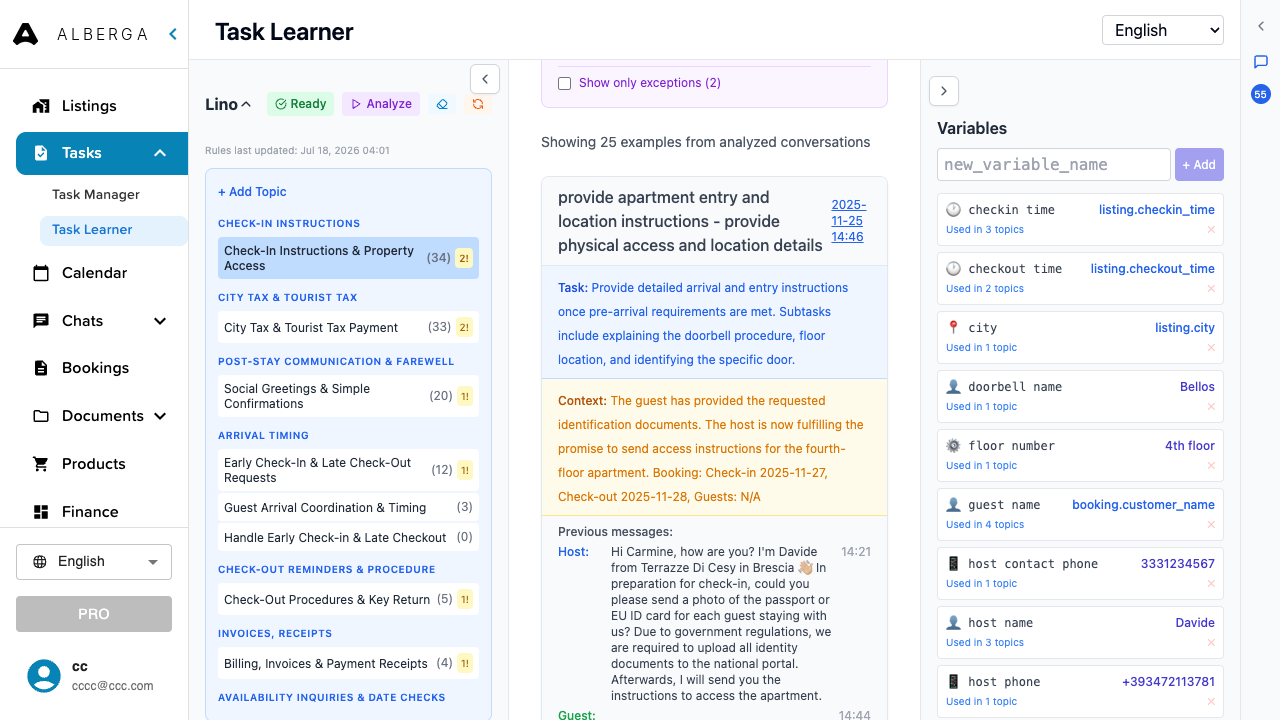
Scroll below a topic’s Rule Summary and you find the actual exchanges the rule was learned from — each example card shows the situation, the context and the messages that were exchanged.
- 1Read through the examples to check the AI understood you correctly.
- 2Use Exclude on an example that shouldn’t be followed (a one-off exception, an outdated answer) — the rules recompute without it.
- 3Tick Show only exceptions to focus on the unusual cases.
Approve what the AI learns
The nightly analysis never rewrites a rule on its own. When recent chats say something different from what the Memory holds — a new door code, a changed check-in time, a photo request that became a form link — it files a Memory change for you instead. A badge in the sidebar counts them, your Cowork chat gets a message, and the managers on the listing’s roster are told on WhatsApp.
- Each change shows Memory now next to Chats say, with how many conversations said it and when the latest was.
- Update Memory applies the new wording. Keep current leaves the rule as it is and files those conversations as exceptions, so the same proposal is not raised again. Correct… lets you write the rule yourself.
- A change is proposed only when at least two different conversations state it and that evidence is newer than the rule — one guest’s misunderstanding is not enough. Plain facts about the place (a new amenity, a restaurant nearby) are added directly; nothing is ever removed without you.
Teach it directly
You do not have to wait for the analysis. Tell your assistant, in the Cowork chat or on WhatsApp: “Remember: from October, checkout is at 10.” It saves the rule in the right topic of the listing’s Memory and confirms. If it is not obvious which listings a rule covers, it asks rather than guessing.
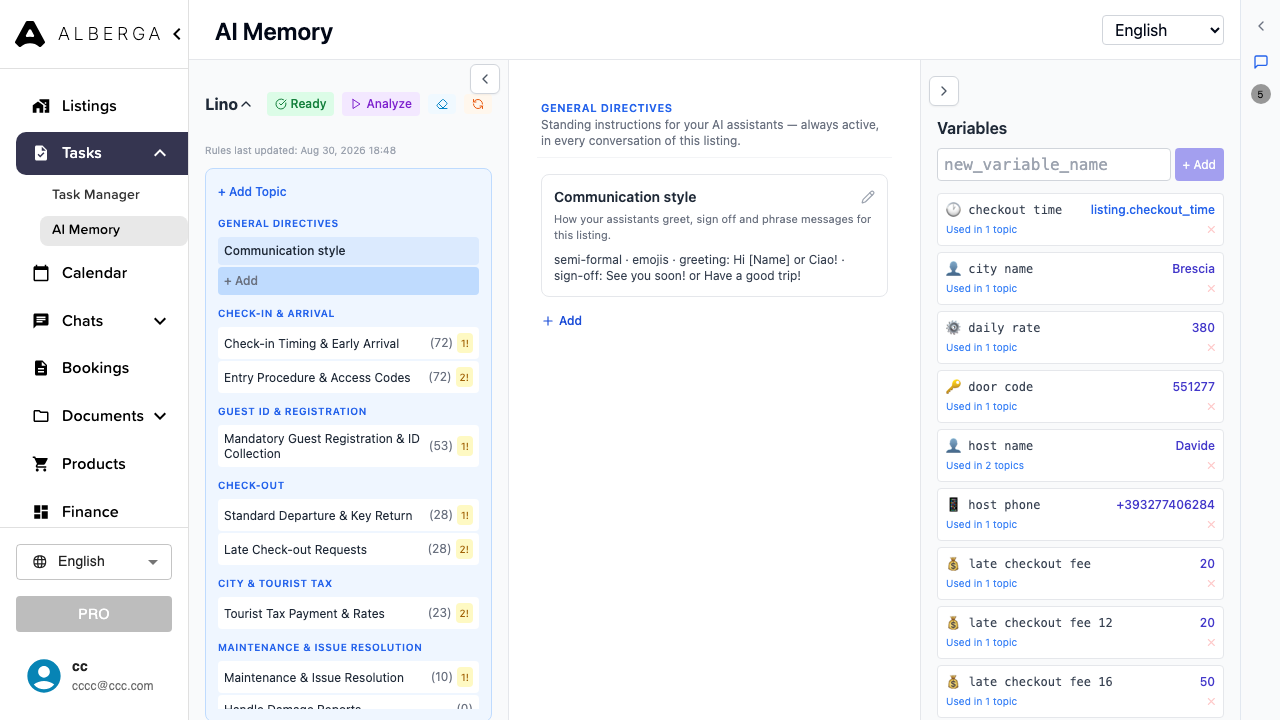
General directives are standing instructions that apply to every conversation of the listing, whatever the topic: “Always propose the airport transfer”, “Never quote a price before checking the calendar”. Add them on the AI Memory page — a short title plus the instruction, up to ten per listing — or say “for all my listings, …” to the assistant and it files one on each. Next to them, Communication style records how your assistants greet, sign off, how formal they are and whether they use emojis.
Good to know: Every edit — yours, the assistant’s or the nightly analysis’s — creates a version. Use the version selector next to the listing name to open an older Memory, read-only, and see what changed since.
Turn a rule into an automation
A rule that says “the day before arrival I send the parking instructions” is an automated task waiting to happen. On any Memory entry, Create task drafts an automated task from it — trigger, recipients and message prefilled — and Create WhatsApp template drafts the template so the message can also go out beyond WhatsApp’s 24-hour window. Review the draft and save; the automated-tasks and templates tutorials cover the rest.
Good to know: Made a change the assistant should pick up right now? Use the Clear AI cache button next to the listing name — otherwise your edits are picked up automatically within a few minutes.
More tutorials
Autopilot: when the AI replies alone, and when it asks you first
Decide exactly how much freedom the AI has — per conversation, per topic and per listing — and approve every message it drafts when you keep it on a short leash.
Create your first automated task
Build a task from the UI, understand every option in the form, link an approved message template — or just describe the automation to the Cowork chat and let the assistant set it up for you.
Your AI co-host, one voice note away
Talk to your assistant on WhatsApp exactly like a colleague — a voice note is all it takes to send payment links, brief the cleaner or pull up your numbers.